


This guide is designed to help you efficiently configure and manage the SPEI payment acceptance method in your merchant management console. Properly setting up payment methods can significantly boost your checkout conversion rates among overseas consumers.
Step 1: Manage Payment Channels
Navigate to "Settings Center" -> "Product Settings" -> "Payment Methods" to centrally manage the payment channels displayed to consumers on the checkout page.
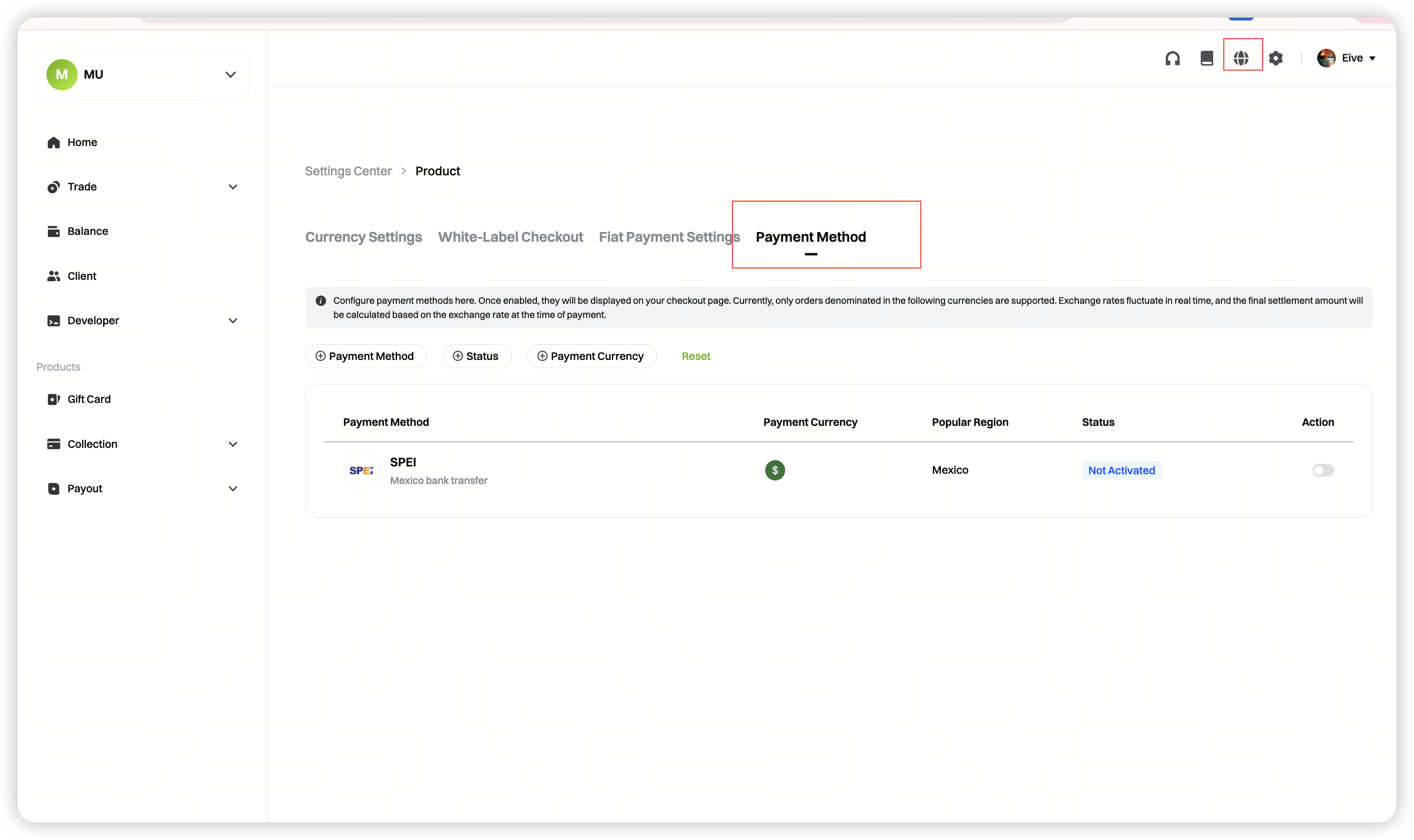
| Payment Method | Supported Currency | Popular Region |
|---|---|---|
| SPEI | MXN (Mexican Peso) | Mexico |
The currently supported payment methods are listed above. More payment methods will be supported in the future.
- Payment Currency: The current version mainly supports orders priced in MXN (Mexican Peso). Additional currencies will be supported later.
- Settlement Currency: GatePay currently settles all payments in USDT to the merchant's balance account.
- Exchange Rate Notice: Foreign exchange rates fluctuate in real time. The final settlement amount will be calculated based on the market exchange rate at the time of payment.
Step 2: Confirm Channel Status
Status descriptions:
| Status Name | Definition & Impact | Recommended Action |
|---|---|---|
| Not Activated | The default initial status for payment methods; not visible to consumers at checkout. You must activate for first-time use and provide the required qualification documents truthfully | Click "Activate" to start configuration. |
| Under Review | When activating for the first time, you need to submit qualification documents. The payment method will be "Under Review" and temporarily unavailable. Once approved by Gate Pay, the channel will automatically activate and become visible to consumers at checkout | Please wait patiently for review |
| Enabled | The channel is online and enabled; consumers can select this payment method at checkout | No action needed. To take it offline, click "Disable". |
| Disabled | The channel is currently offline and not visible to consumers at checkout | You can enable this payment method by clicking the "Enable" button. |
| Qualification Restricted | The channel is restricted due to expired or rejected qualifications | View the rejection reason and click "Supplement Materials" to resubmit. |
Activation:
The default initial status for payment methods; not visible to consumers at checkout. For first-time use, click "Activate" to start configuration. Please fill out and submit the required qualification documents truthfully.
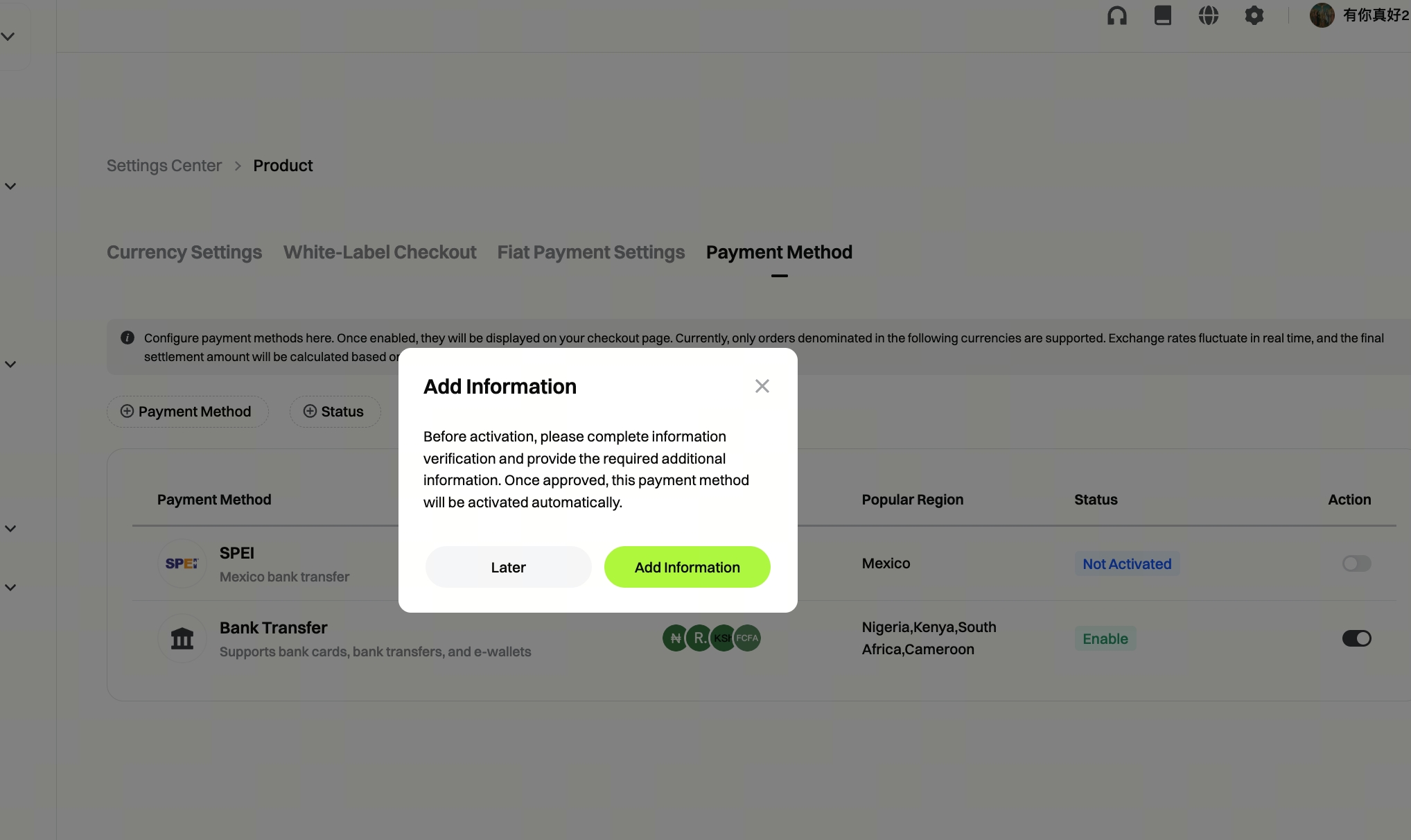
Pause Usage (Disable):
If you wish to take a payment method offline from the checkout page, click "Disable" in the operations column and confirm in the popup. Once disabled, the status will change to "Disabled".
Re-enable (Enable):
For channels that have been disabled, click "Enable" in the operations column and confirm to make the channel visible to consumers again.
Qualification Restricted - Supplement Materials Required
If the channel is restricted due to expired or rejected qualifications, follow these steps to submit materials and enable the SPEI payment method:
- Check the rejection reason (displayed in the top banner).
- Click the "Supplement Materials" button corresponding to the channel in the list.
- Enter the qualification submission page, modify information according to the rejection reason, and upload the required materials (see Section 3: Qualification Materials Submission for details). Resubmit for review.
- After submission, the channel status will change to "Under Review". Please wait patiently for the review results.
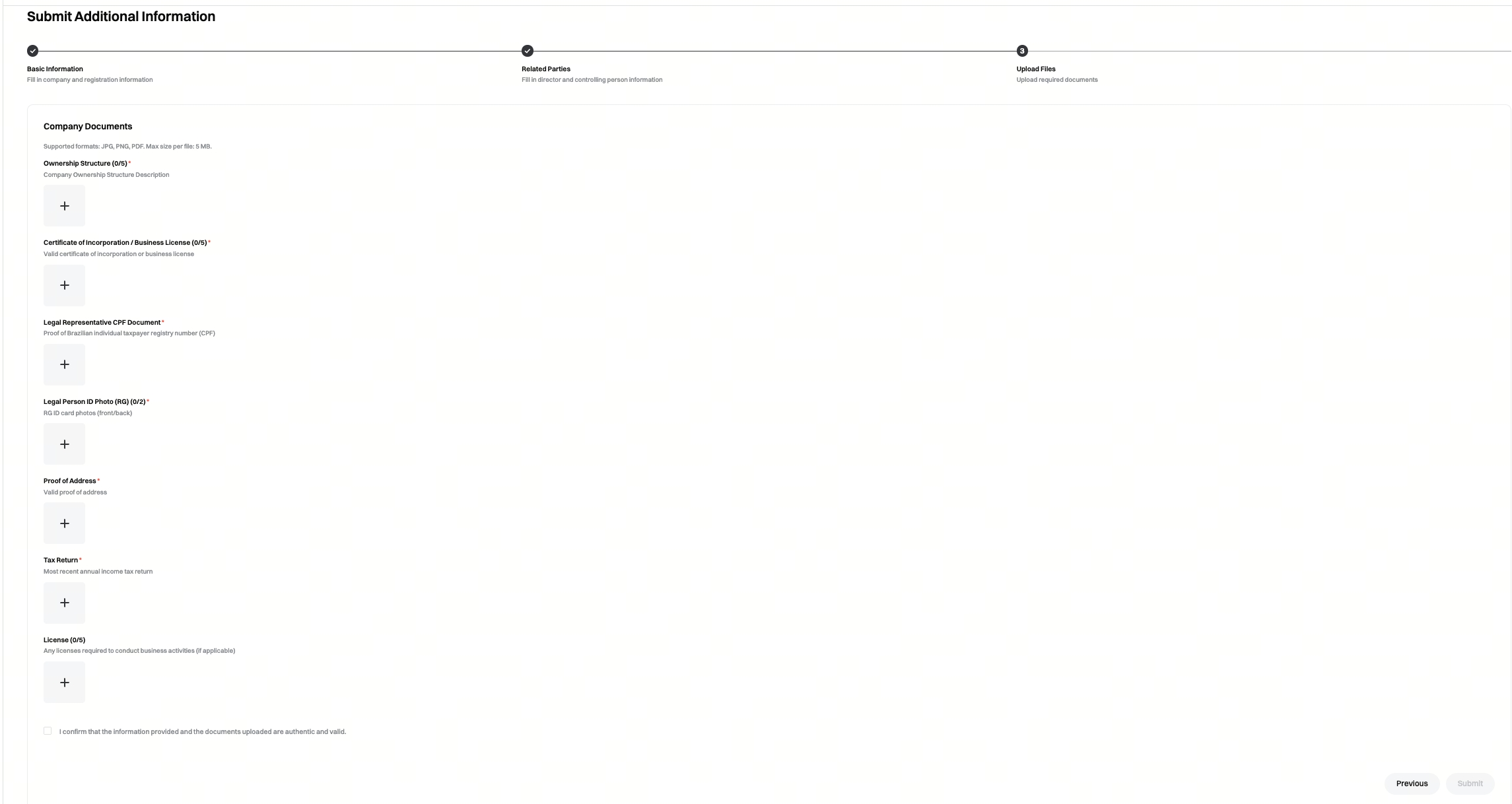
Step 3: Qualification Materials Submission
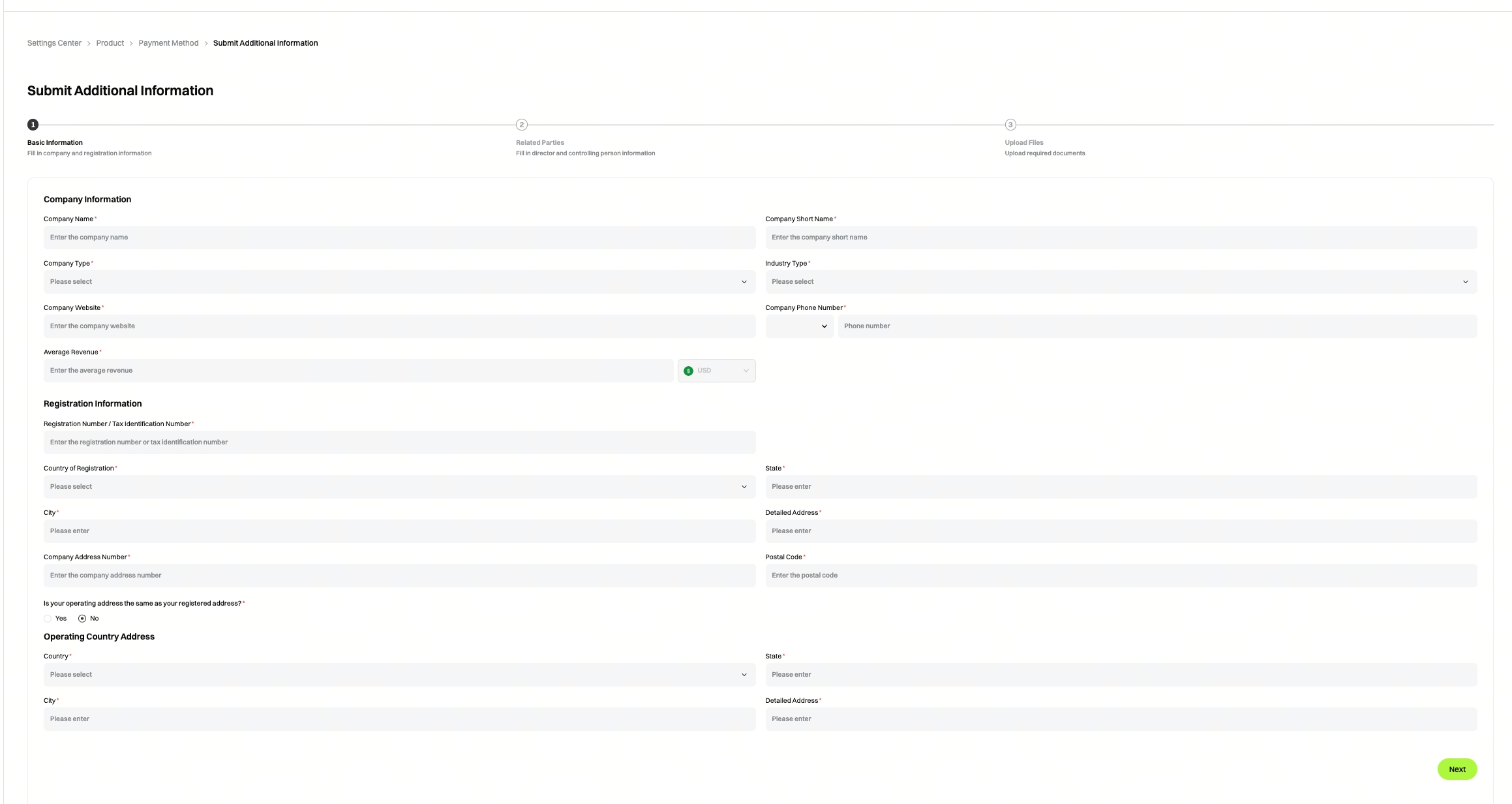
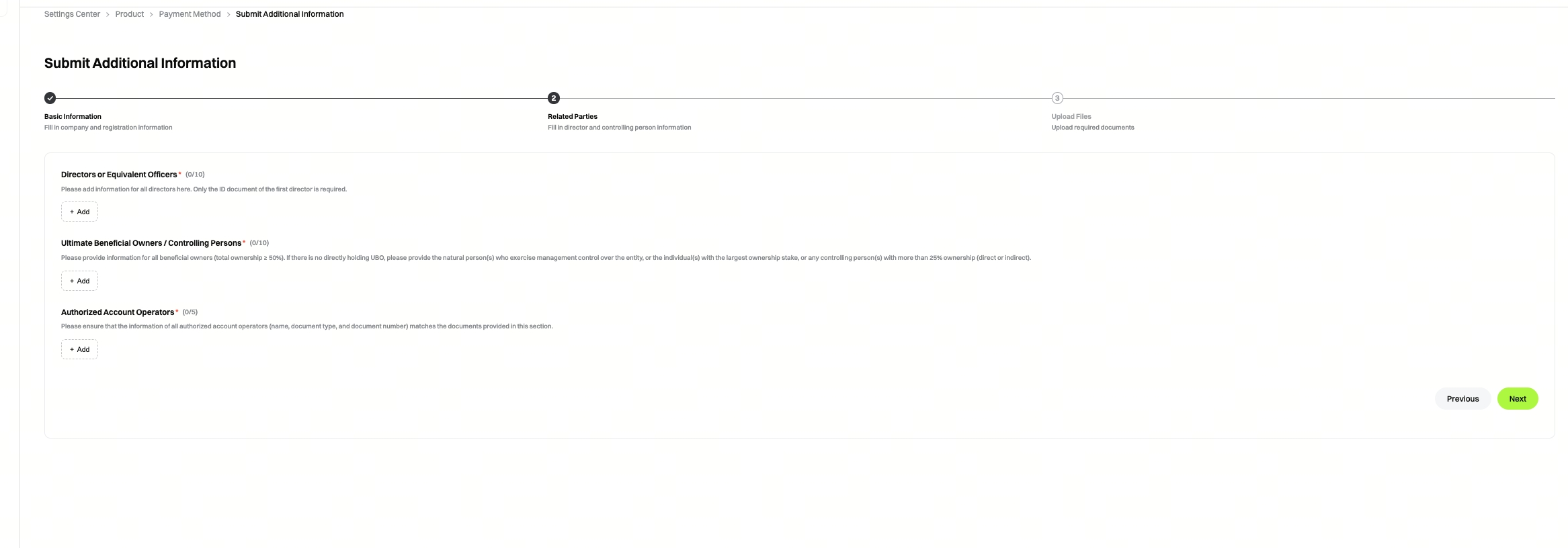
Submitting qualification materials involves three steps: Basic Information, Submit Related Party Materials, and Submit Company Materials.
Approval is generally completed within 48 hours.
- Basic Information
- Submit Related Party Materials
- Submit Company Materials
Step 4: Order Generation and Payment
1. Order Generation
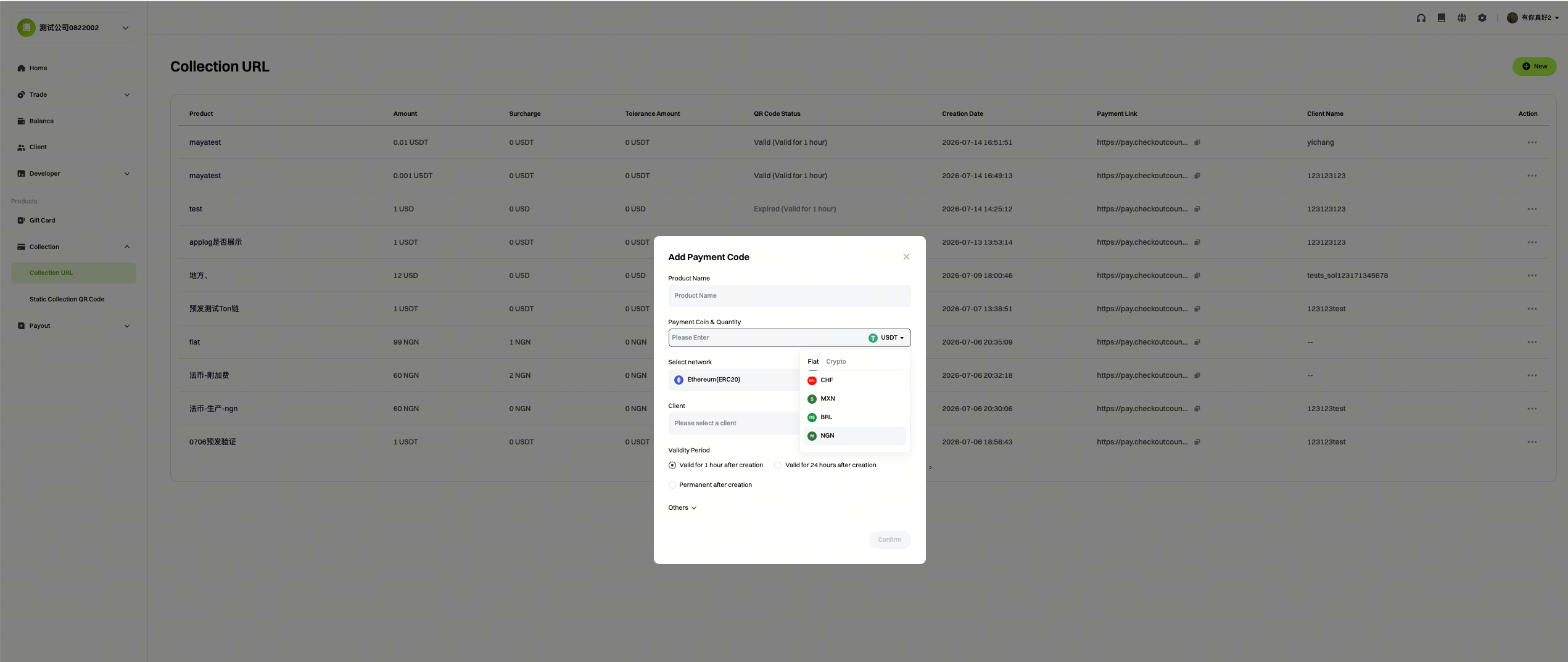
Currently, SPEI fiat payments are only available for checkout orders. You can create checkout orders as follows:
Create via Merchant Console: Merchant Console -> Collection -> Collection Link; select MXN as the currency
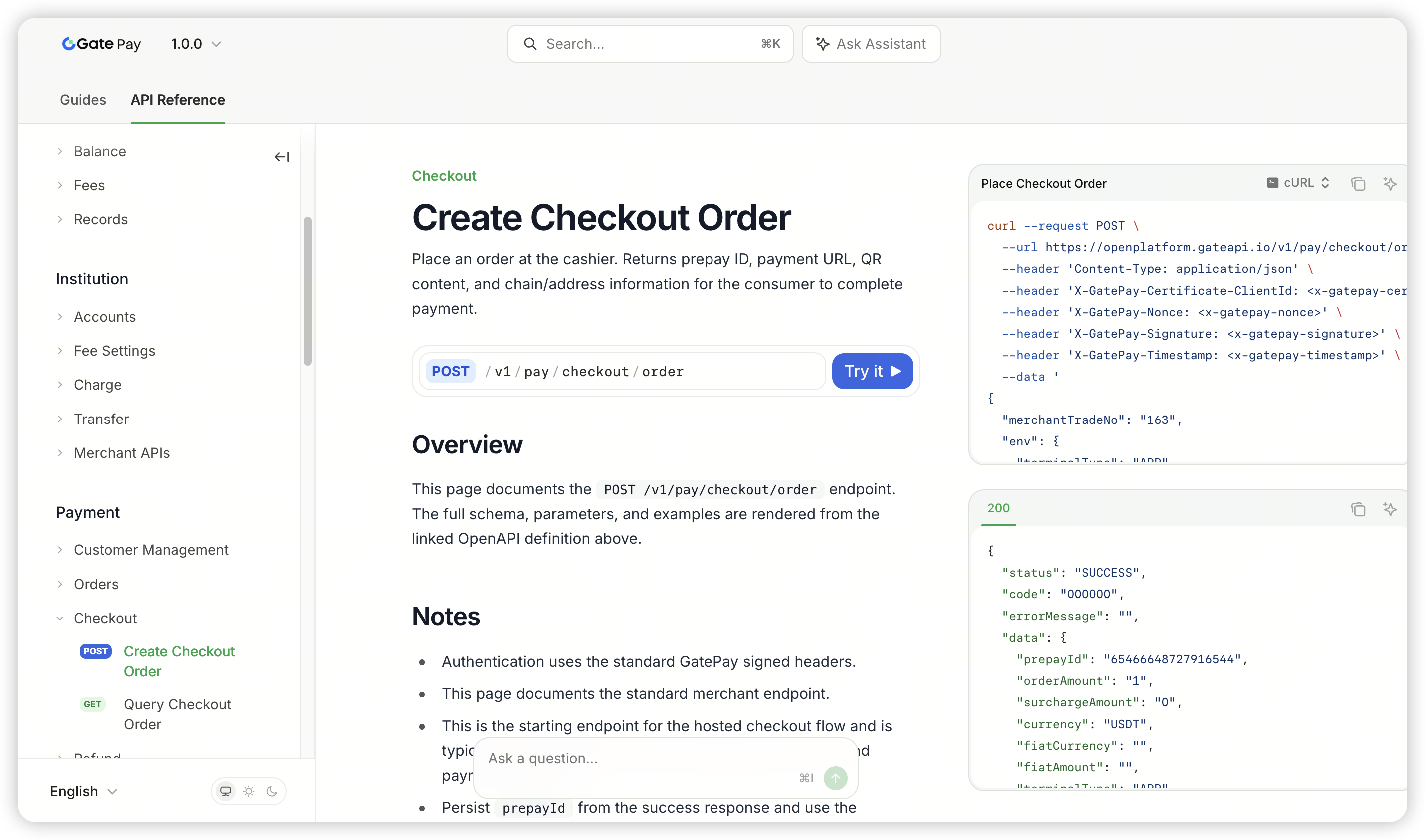
Upload the two parameters, fiatCurrency and fiatAmount.
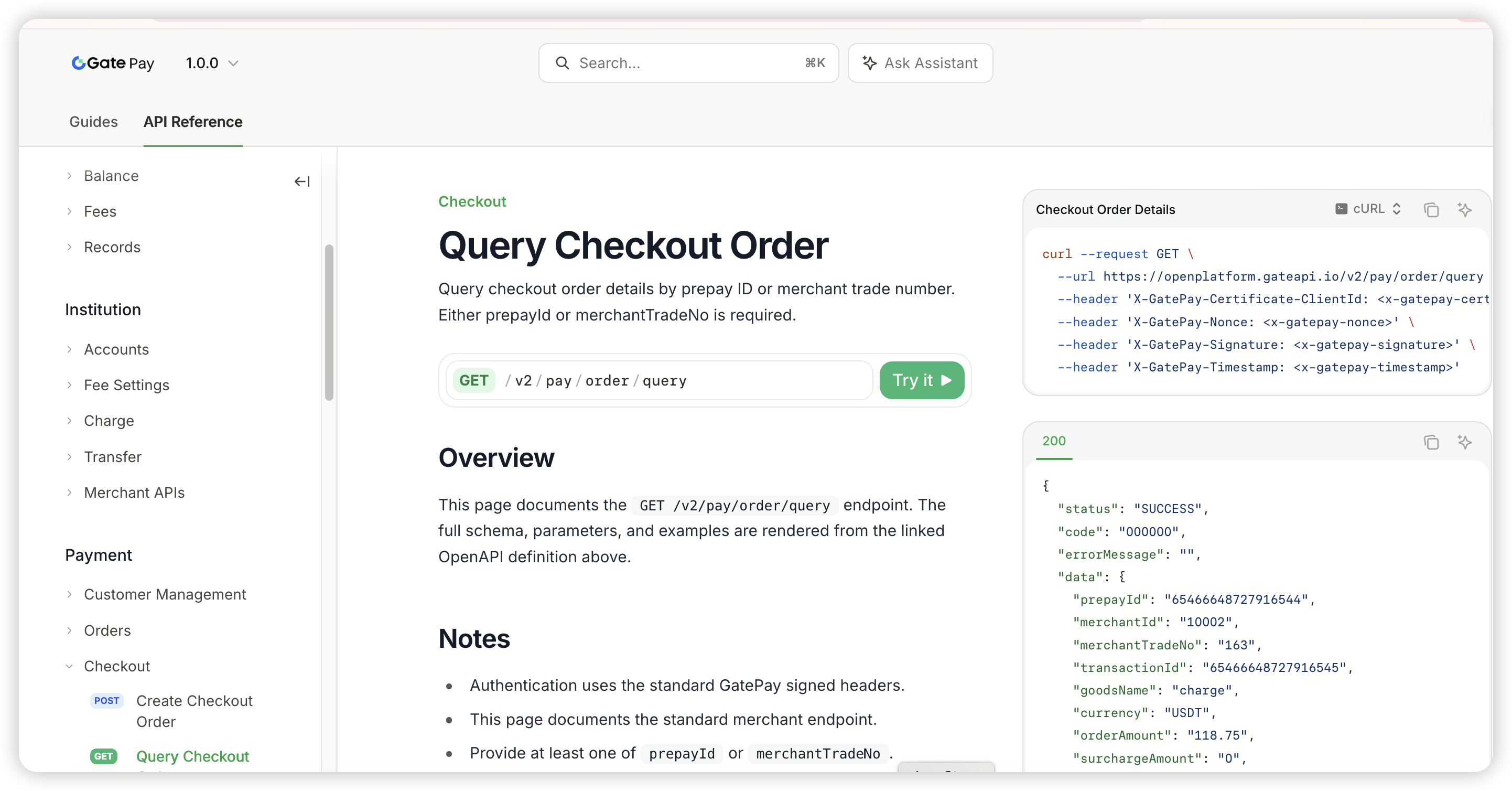
https://docs.gate.com/api-reference/version/100/en/endpoint/checkout/order
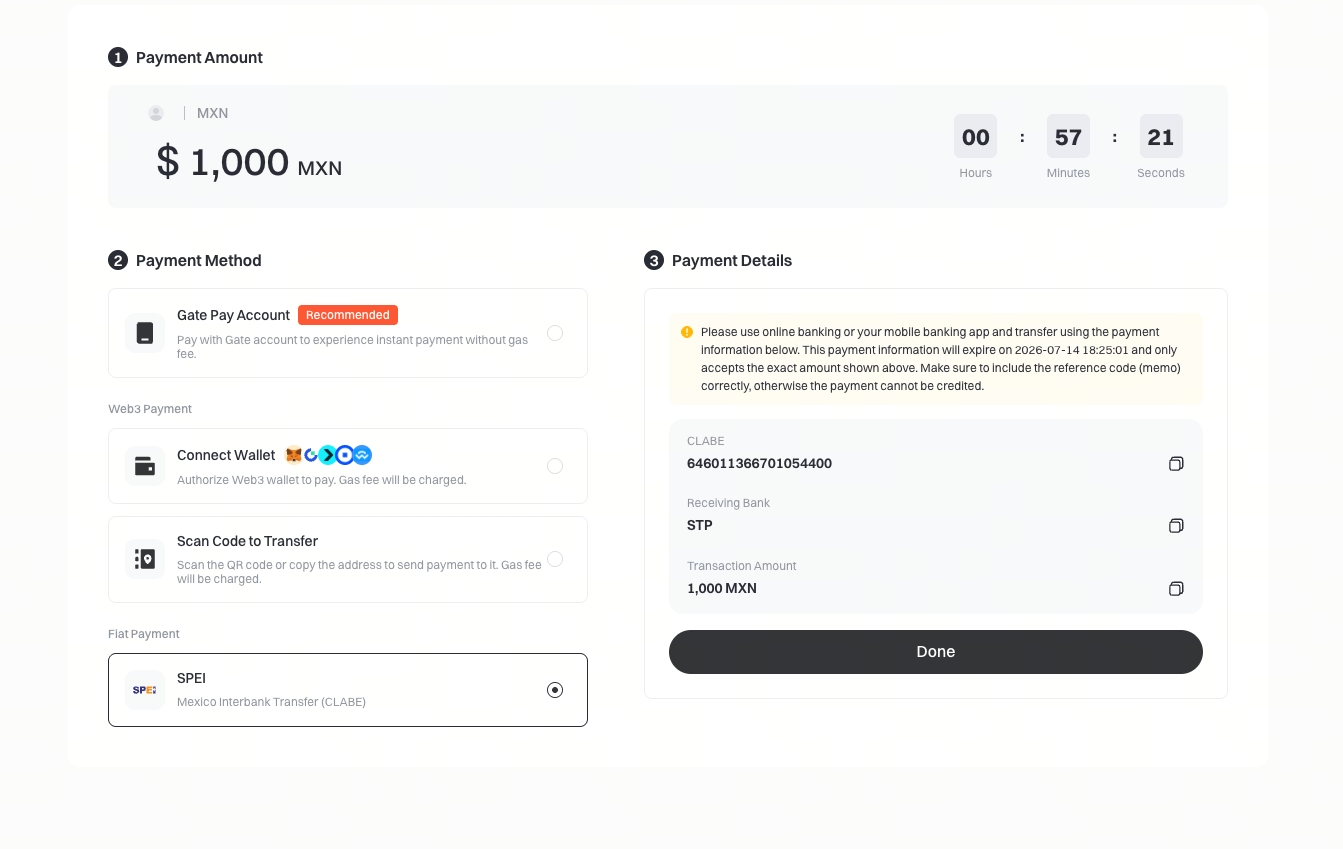
2. Order Payment
- Below is how SPEI appears on the checkout page. Users can make payments using the provided collection information.
- SPEI collection information is valid for 30 minutes. Once expired, it becomes invalid, and you can retrieve it again (if the remaining order time is less than 30 minutes, it cannot be retrieved).
3. View Order Details
View via Merchant Console:
Merchant Console -> Transactions -> Collection; view the order list and select "Fiat Payment" as the payment method to filter
Query via API:
https://docs.gate.com/api-reference/version/100/en/endpoint/checkout/orderQuery
FAQ
1. What are the transaction limits?
- Single transaction limit (USDT): 【0.01, 100,000】
- Monthly limit (USDT): 【0.01, 1,000,000】
- Annual limit (USDT): 【0.01, 12,000,000】
2. Which countries does SPEI support?
Currently only Mexico is supported
3. Which currencies does SPEI support?
Currently only MXN is supported
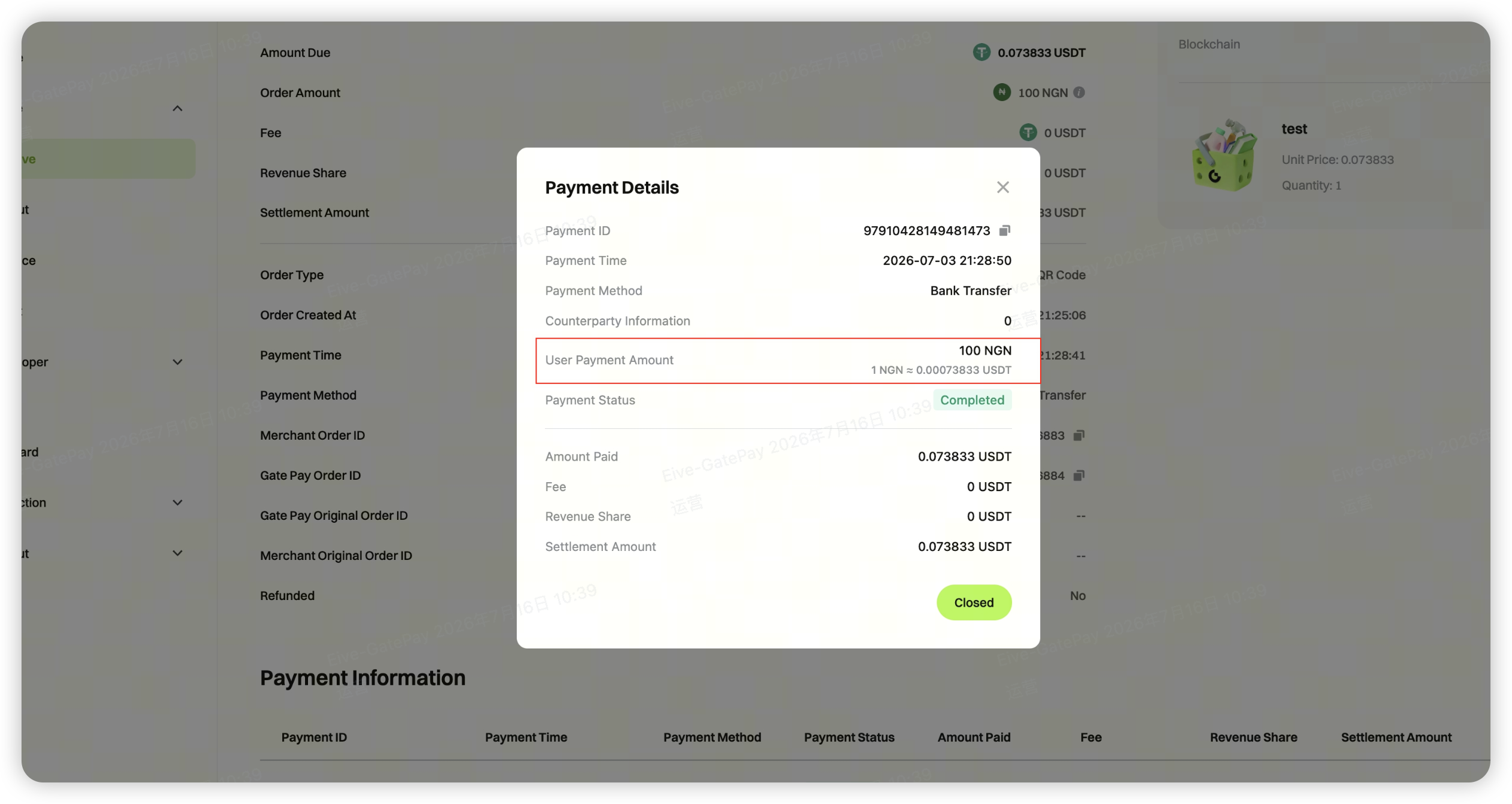
4. How can I view the exchange rate for a payment?
You can currently view the exchange rate in the merchant backend — Payments — Order Details
5. How do I process a refund?
SPEI payments do not currently support automatic online refunds. If you need a refund, please contact GatePay operations staff to process it.
6. What materials are required to activate SPEI? How does verification work?
During activation in the merchant backend, follow the prompts to upload the required materials to complete verification. The required information covers three areas: Basic Information , Submission of Related Party Materials , and Submission of Company Materials
Step 1: Basic Information (company and registration details) Company information: company name, company short name, company type, industry type, company website, etc. Registration information: registration number/tax ID, country of registration, detailed address, company address code, postal code, etc. Operating country/address (required if the operating address differs from the registered address)
Step 2: Related Parties (director and beneficial owner information) Directors or equivalent persons Ultimate beneficial owner(s) or key controlling directors Authorized account operator
Step 3: Submission of Company Materials Shareholding structure, company registration certificate/business license, legal representative's ID photo (front/back), proof of address, tax filing documents, licenses
Disclaimer
The content provided herein is for reference and educational purposes only and does not constitute any financial, investment, trading, or legal advice, nor does it constitute an offer or solicitation to buy or sell any digital assets. Gate makes no express or implied representations or warranties regarding the accuracy, completeness, or timeliness of the information contained herein. Product features, interfaces, rules, and fee structures may be updated or adjusted at any time. Please refer to the latest announcements and the actual information displayed on the Gate platform for the most accurate details.
Digital asset investments involve significant risk, and prices may fluctuate substantially. You may lose the entire amount of your investment. Please make decisions cautiously based on your own financial situation and risk tolerance after fully understanding the associated risks. If necessary, you are advised to consult an independent professional financial or legal advisor.
For more information about potential risks, please refer to Gate's Risk Disclosure and User Agreement.
