


Applicable Scope
This guide applies to Gate Web
Before you start: Prepare a Web3 wallet for account connection and have your email address and phone number ready for verification
Estimated time: 5 m
Objective
This guide will walk you through how to create and manage API Keys for the Web3 DEX API on Gate Web.
Steps
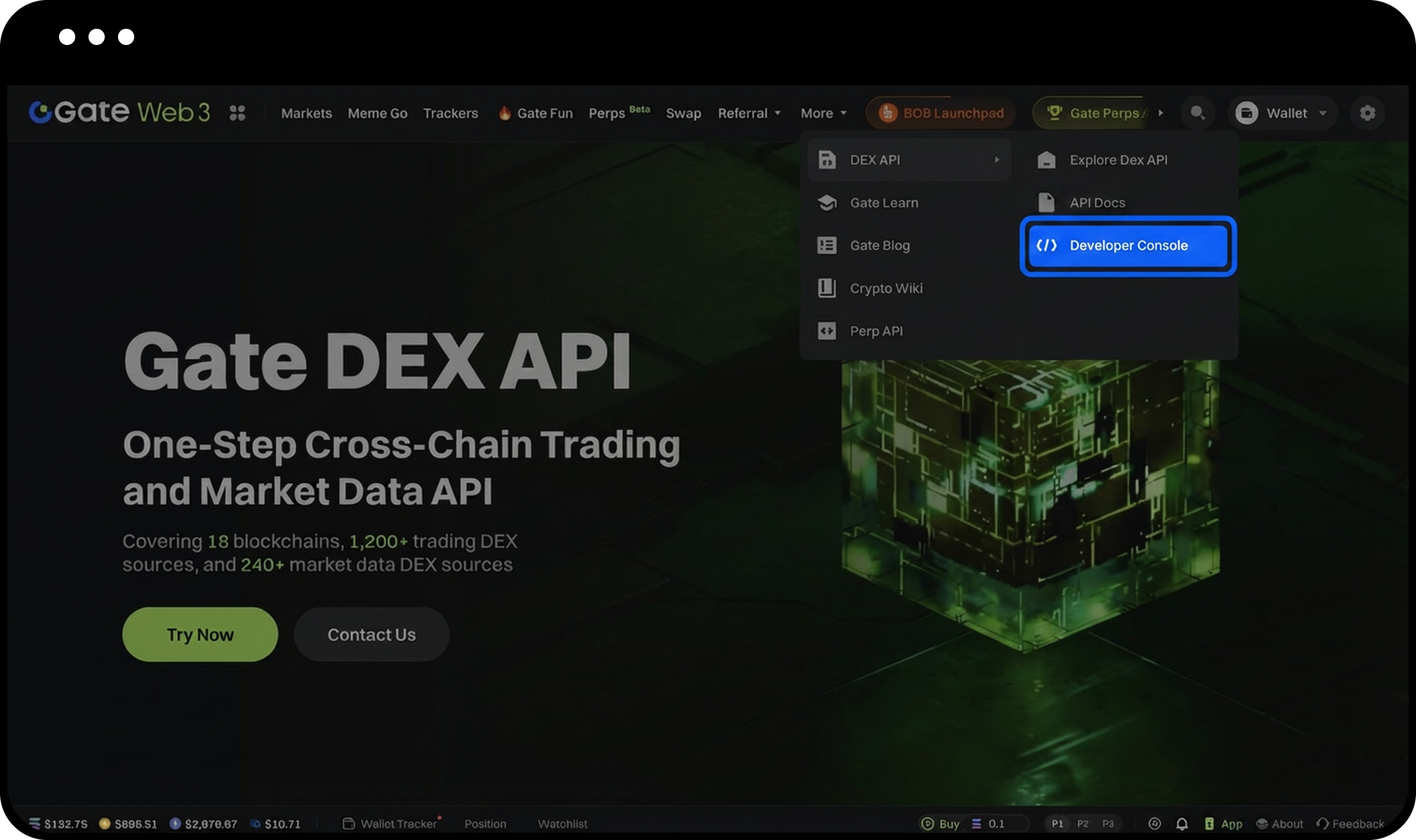
Step 1: Access the Developer Console
- Click the "Developer Console" entry in the website navigation bar.
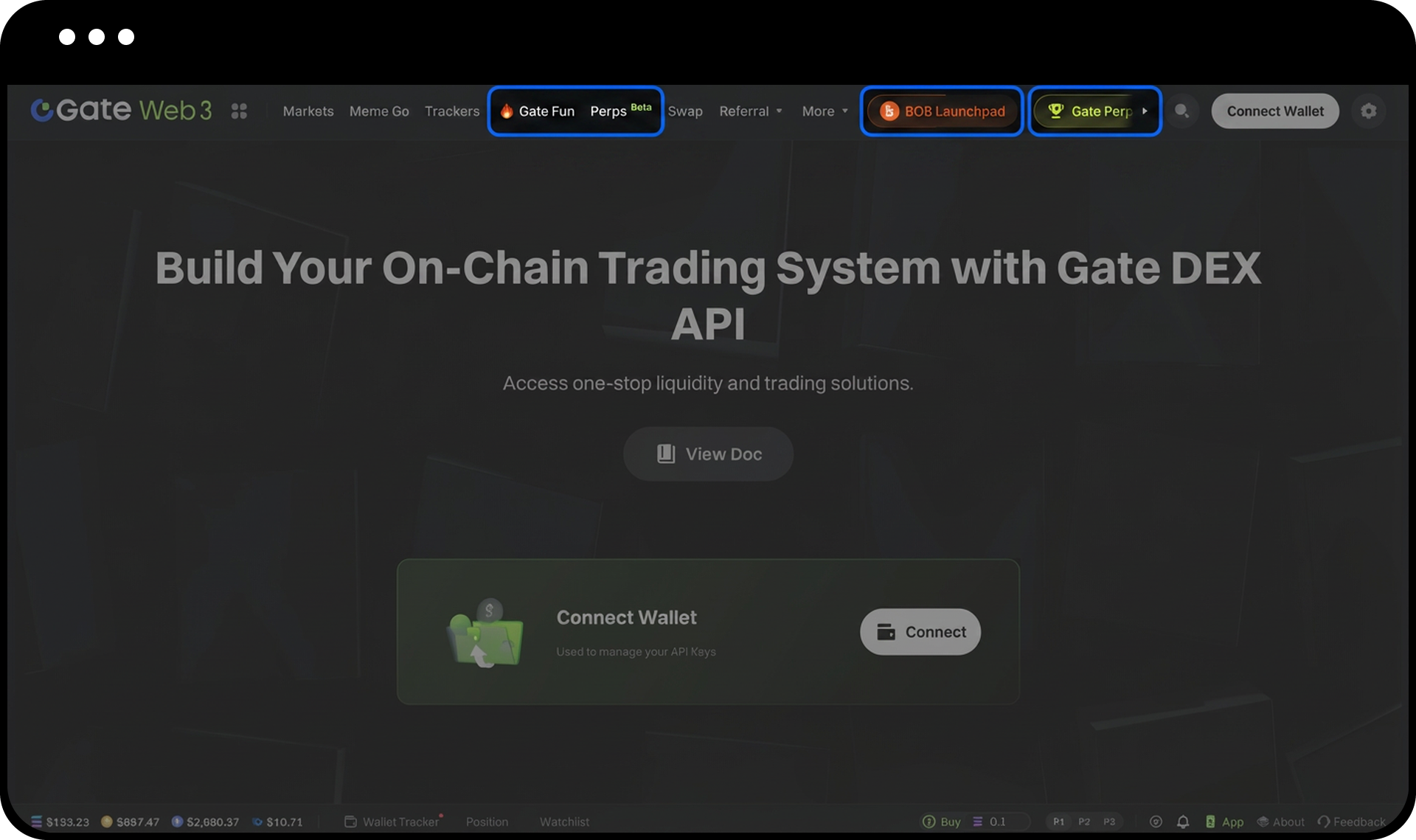
- Log in or create your developer account via "Connect Wallet".
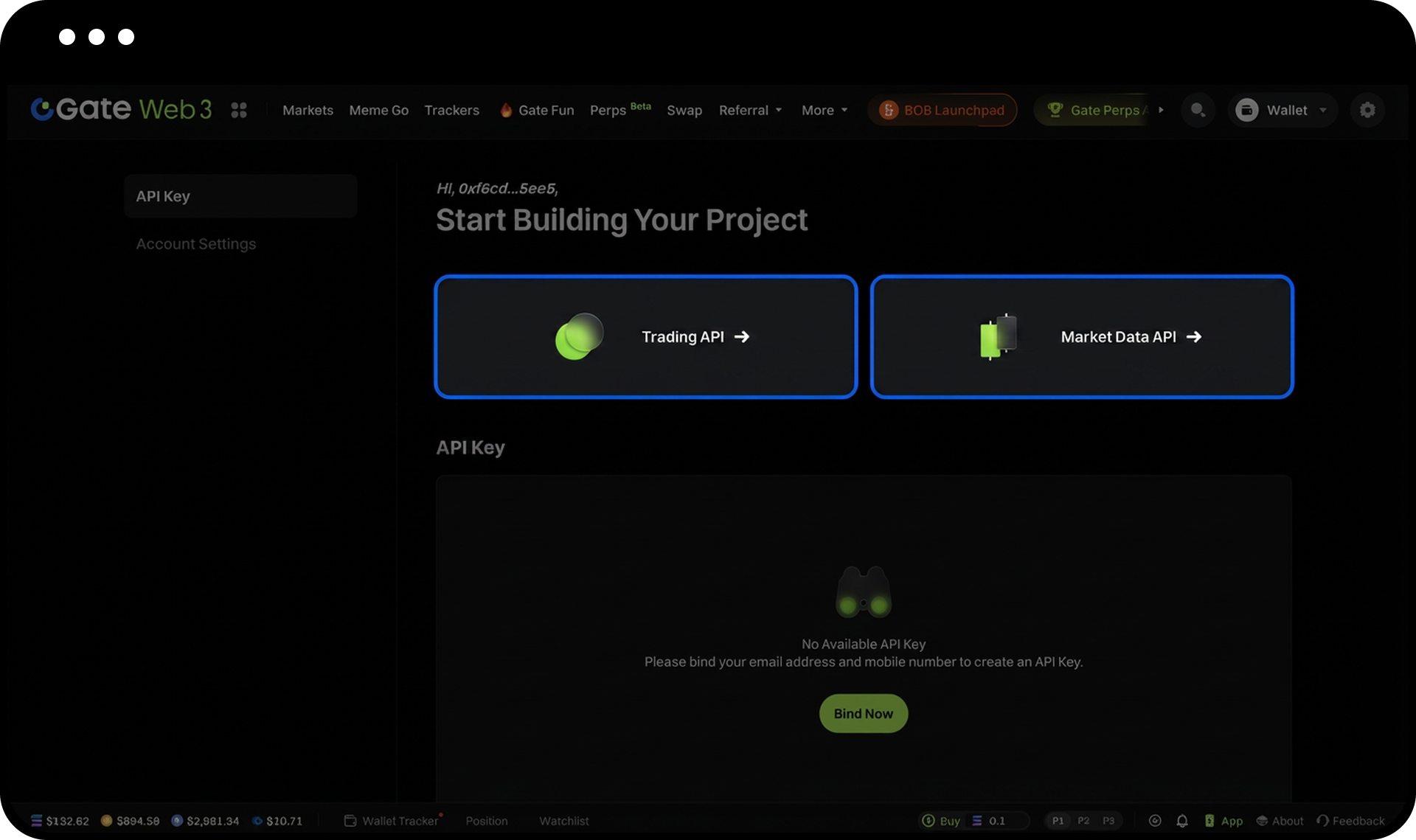
Step 2: Bind Email and Phone Number
- Click the "Bind Now" button to navigate to the "Settings" page.
- Enter your email address and phone number.
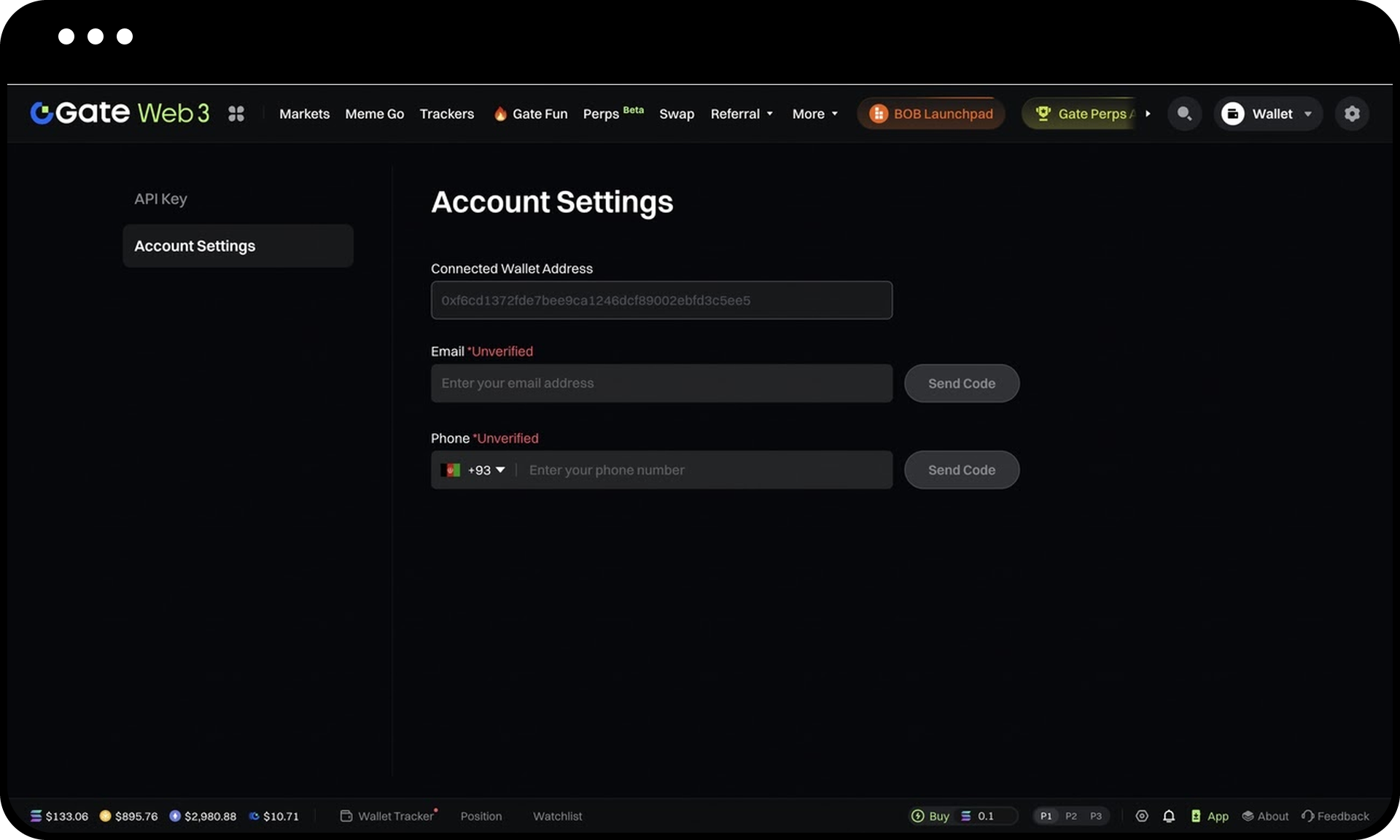
- Complete the verification process to finish binding.
Step 3: Create a New API Key
- Navigate to the "API Key Management" page.
- Click the "Create API Key" button.
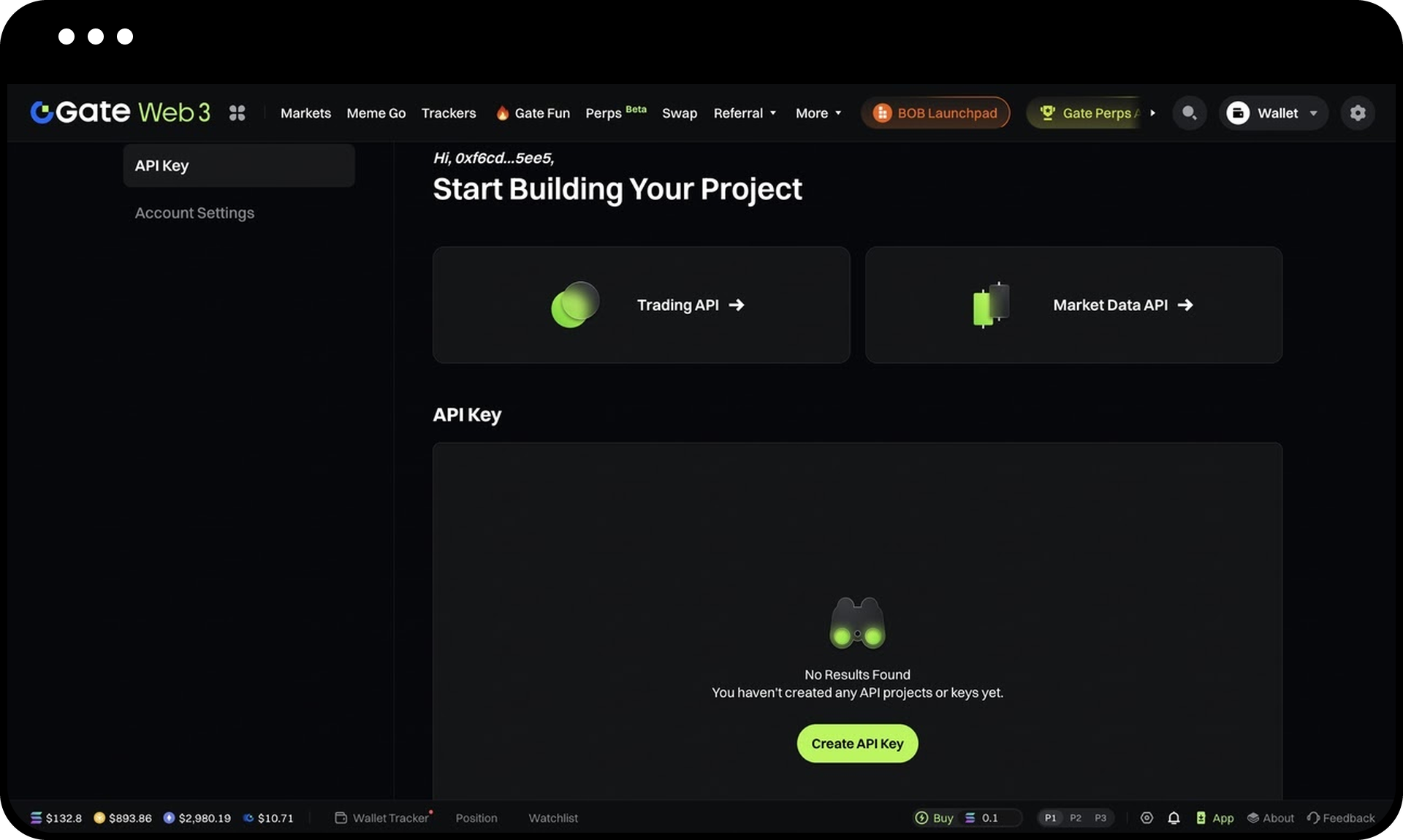
- Fill in the required information:
- Name: A label to help you identify the key
- Passphrase: Used to protect your Secret Key
- IP Allowlist: Restricts the sources that can call this API
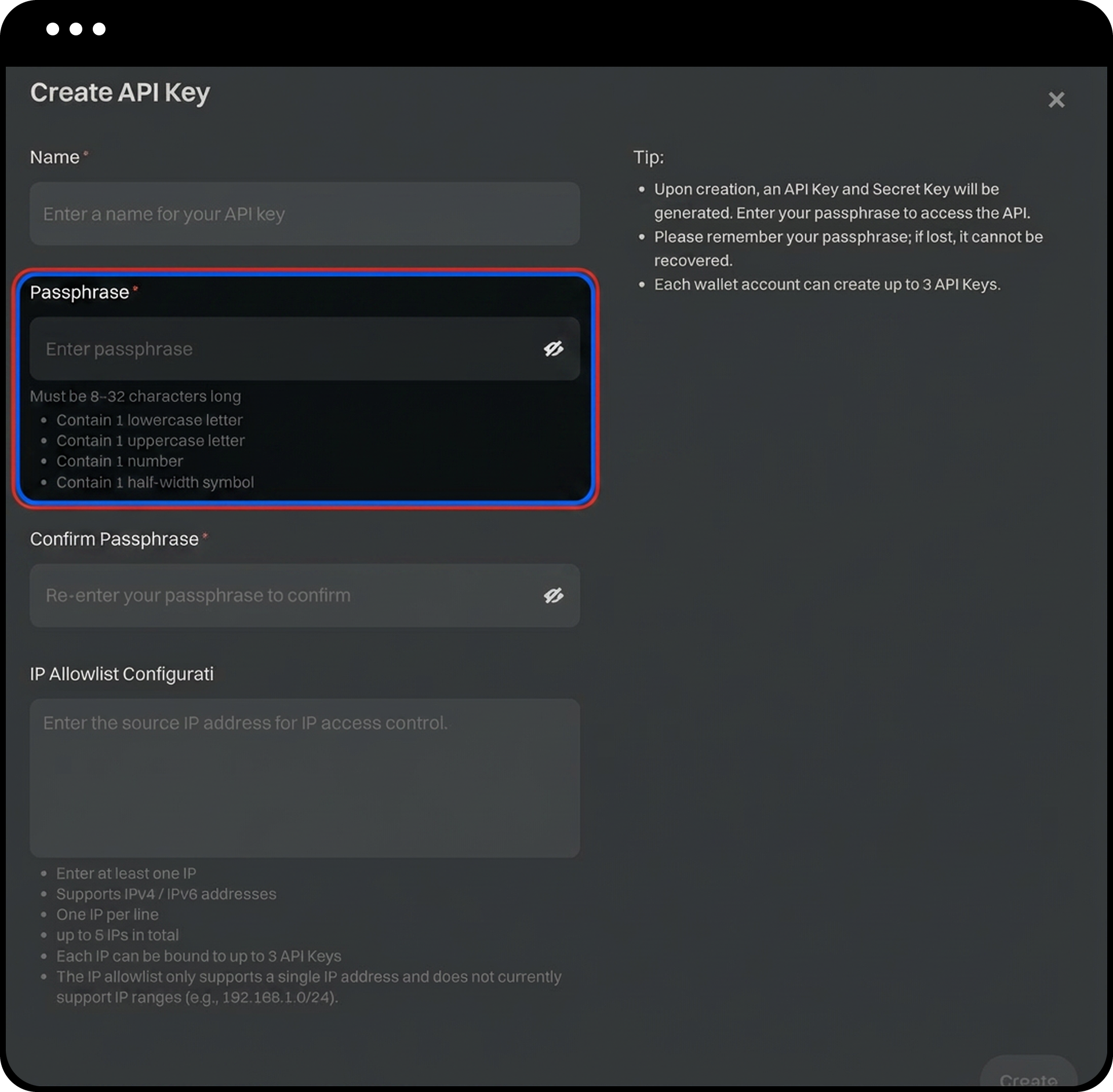
- Click "Confirm" to generate your new API Key.
Step 4: Copy Your Secret Key
- On the API Key Management page, locate your newly created API Key.
- Click "Copy" to obtain your Secret Key.
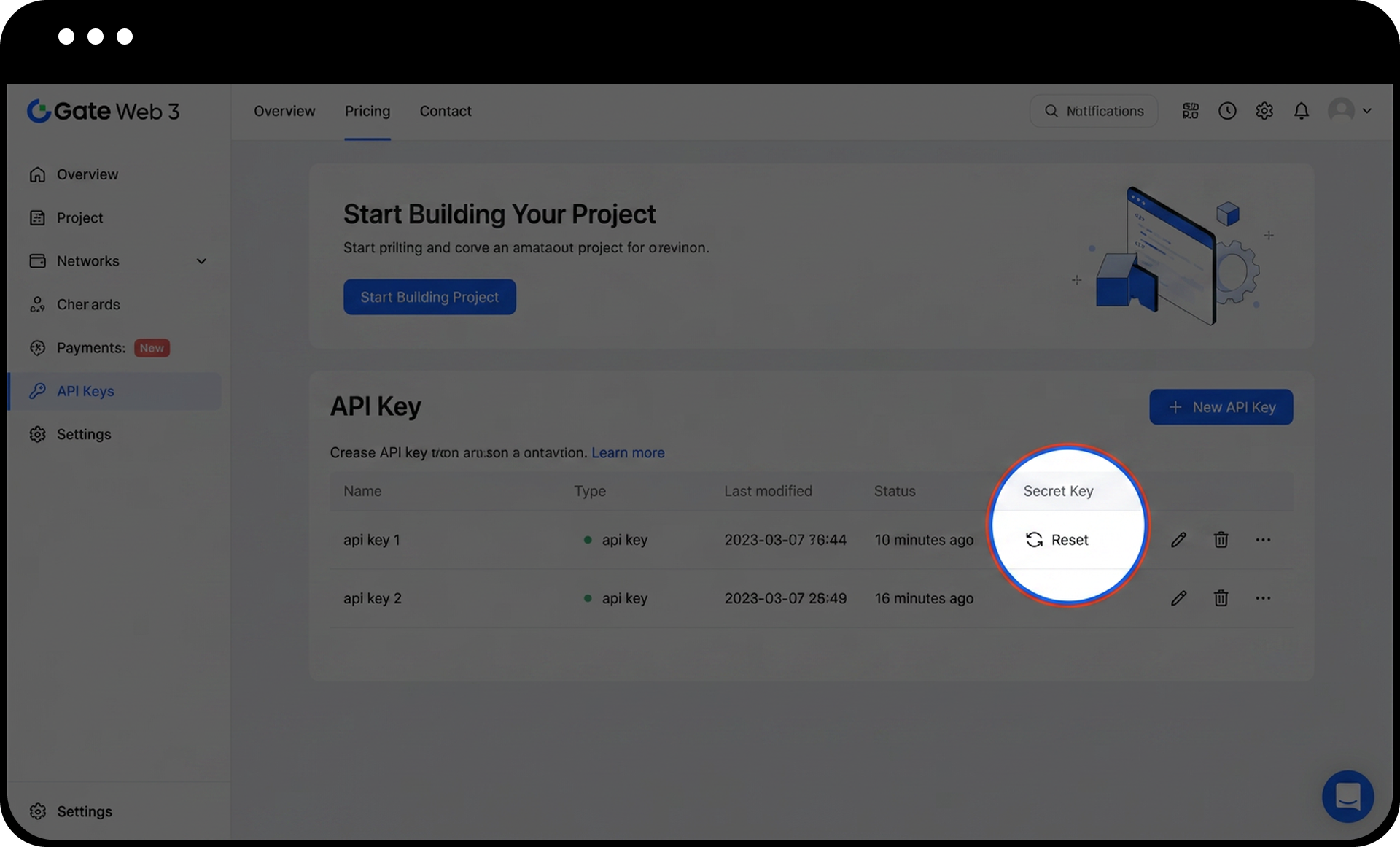
Step 5: Use the API
Access the complete API documentation at: https://gateweb3.gitbook.io/gate_dex_api
Notes
- Email and phone number binding is mandatory before creating your first API Key to enhance account security.
- Each account can create up to 3 API Keys.
- Both the API Key and Secret Key are required to make API calls.
- The Secret Key is randomly generated by the system and cannot be recovered if lost.
- If you forget your passphrase, you will not be able to view or reset your Secret Key.
- Keep your passphrase and key information secure at all times.
FAQ
Q1: What happens if I lose my Secret Key?
A: The Secret Key cannot be recovered if lost. You will need to delete the existing API Key and create a new one.
Q2: Can I modify my API Key settings after creation?
A: You can modify the Name and IP Allowlist settings after creation, but the Secret Key and Passphrase cannot be changed. If you need to update these, you must create a new API Key.
Q3: Why do I need to bind my email and phone number?
A: Binding your email and phone number is a security requirement that helps protect your account and API Keys from unauthorized access.
Q4: How many API Keys can I create per account?
A: Each account can create up to 3 API Keys. If you need additional keys, you must delete an existing one first.
Disclaimer
The content provided herein is for reference and educational purposes only and does not constitute any financial, investment, trading, or legal advice, nor does it constitute an offer or solicitation to buy or sell any digital assets. Gate makes no express or implied representations or warranties regarding the accuracy, completeness, or timeliness of the information contained herein. Product features, interfaces, rules, and fee structures may be updated or adjusted at any time. Please refer to the latest announcements and the actual information displayed on the Gate platform for the most accurate details.
Digital asset investments involve significant risk, and prices may fluctuate substantially. You may lose the entire amount of your investment. Please make decisions cautiously based on your own financial situation and risk tolerance after fully understanding the associated risks. If necessary, you are advised to consult an independent professional financial or legal advisor.
For more information about potential risks, please refer to Gate's Risk Disclosure and User Agreement.
